
|
|
  |
Главная --> Промиздат --> Map principle 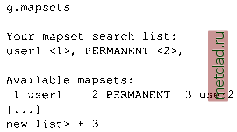 You can restrict others access to your own MAPSET through the use of the g.access. MAPSETs to which access is restricted can still be listed in anothers MAPSET SEARCH PATH; however, access to these MAPSETs will remain restricted. To modify data from another users MAPSET, copy them to your MAPSET using g.copy. A useful command for getting information about the projection parameters and projection units for the LOCATION is g.projinfo. You may try it in the Spearfish LOCATION to get the coordinate system information. LOCATION management. To copy a LOCATION or even a complete GRASS database directory, we recommend packaging the directories and ex-tracing them in the destination directory. For example, to package the Spearfish LOCATION, enter: 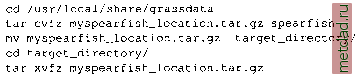 g.copy vect=railroads@PERMANENT,myrailroads 1 g.copy vect=railroads@PERMANENT,myrailroads2 g.copy vect=railroads@PERMANENT,myrailroads3 g.list vect g.mremove vect= myrail* The module will collect the list of map names and ask for confirmation to delete. You want to double check, if any map is listed which you want to keep. You wont be able to undelete it. Initially, you have access only to the MAPSET PERMANENT (read only) and your own MAPSET (read and write). If several MAPSETs exist for a given LOCATION, for example, when working within a team, you have to add these other MAPSETs to the MAPSET SEARCH PATH. Note that you have only read access to MAPSETs belonging to other users. We recommend using the module g.mapsets interactively, that is, starting it without parameters. For example, to add MAPSET user2, type + and a number listed along the name of the MAPSET that you want to add at the new list> prompt: 3.2. STARTING GRASS WITH A NEW PROJECT When starting a new project, we need to define a new LOCATION and its projection and coordinate system. GRASS 5.3 LOCATION; This is the name of an available geographic location, is the sample data base for which all tutorials are written. MAPSET: Every GRASS session runs under the name of a MAPSET,Associated with each MAPSET is a rectangular COORDINATE REGION and a list of any new maps created. DATABASE: This is the Unix directory containing the geographic databases The REGION defaults to the entire area of the chosen LOCATION. You may change it later with the command: g,region LOCATION: spearfishLL {enter list for a list of locations) MAPSET: userl {or mapsets within a location) DATABASE: /usr/local/share/grassdata AFTER COMPLETING ALL ANSWERS, HIT <ESC><ENTER> TO CONTINUE (OR <Ctri-C> TO CANCEL) Figure 3.5. GRASS text-based startup screen for selection of LOCATION, MAPSET and DATABASE The target directory may be located on another machine, in this case you will transfer the file myspearfish location.tar.gz on floppy/CD-ROM or through network to the destination machine and extract it there. To remove a LOCATION from the GRASS database you have to change to the database directory: cd /usr/local/share/grassdata rm -r spearfish This will remove the entire directory. If you want to avoid the delete confirmation prompts for every file/directory, add the flag -f to the rm command. Of course you can also use a file manager. If we have data in different coordinate systems we have to import and store them in different LOCATIONS. However, the data can be re-projected between these LOCATIONS using the GRASS projection modules. 3.2.1 Latitude-Longitude For illustration we create a new Spearfish LOCATION in latitude-longitude coordinate system. We assume that you have already created a directory for the GRASS DATABASE called /usr/local/share/grassdata (see Section 3.1.3). To create the new LOCATION, we first start GRASS: grass53 GRASS starts with the TclTk interface that allows you to select your LOCATION and MAPSET. Because we want to define a new project we select Create new which brings us to the classic, non-graphical startup screen (see Figure 3.5). For LOCATION enter the name for your new project (in our case spearfishLL), for MAPSET you can enter your name, and for DATABASE you should have /usr/local/share/grassdata (if it is not there, type it in). Note that this is an old fashioned interface, and when you want to change something, you need to type over it (BACKSPACE will not erase it). Once you have entered the new LOCATION, MAPSET, and DATABASE, you can continue with <ESC><ENTER>. Because your LOCATION does not exist yet, the following menu appears: 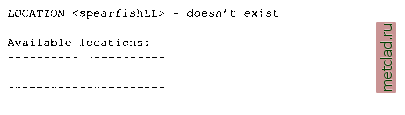 spearfish Would you like to create location <spearfishLL> ? (y/n) Type y and you will get the following message: ,11 need the follow, information: 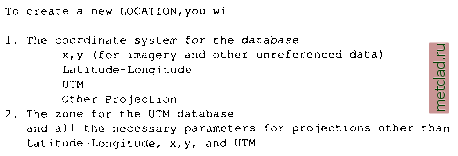
|